Category Archives: Tips & Tricks

Get Started with IPTV: Free and Paid Options for All Devices

In today’s digital age, traditional cable TV is steadily being replaced by more flexible and affordable streaming solutions like IPTV. Internet Protocol Television (IPTV) delivers TV content over the internet, allowing users to stream live channels and on-demand content through apps, smart devices, or media players. If you’re ready to explore IPTV, here’s a practical guide to get started—with both free and paid options.

What is IPTV?

IPTV stands for Internet Protocol Television. Instead of receiving broadcasts through traditional terrestrial, satellite, or cable formats, IPTV delivers content through your internet connection. This allows for more personalized and on-demand viewing experiences.

Free IPTV Sources (M3U8 Playlists)

One of the easiest ways to explore IPTV is by using free M3U or M3U8 playlists. These are text-based files or links that contain stream URLs to various channels.

Read more »

Installing Log2RAM utility on your Raspberry Pi

log2ram is a utility specifically designed for Linux-based systems, particularly single-board computers like the Raspberry Pi, to mitigate wear on their SD cards. It achieves this by strategically minimizing write operations to the SD card, a component known for its susceptibility to degradation from frequent write cycles. The core functionality involves storing system logs in RAM (Random Access Memory), a much faster and less wear-prone storage medium. This approach not only significantly extends the lifespan of the SD card, as detailed in https://linuxfun.org/en/2021/01/01/what-log2ram-does-en/, but also enhances overall system responsiveness due to the inherently faster read and write speeds of RAM compared to SD cards.

Although, log2ram is primarily recommended for Raspberry Pi and systems which run off an SD card, but it can be installed on any Linux system.

log2ram operates by keeping system logs in a RAM-based filesystem (tmpfs). To persist these logs, it periodically flushes or syncs the contents of this RAM filesystem to the actual storage media (typically an SD card) at a defined interval. This synchronization ensures that logs are not completely lost upon a system crash or power failure. The frequency of this flush operation is configurable, allowing users to balance the need for up-to-date persistent logs with the desire to minimize write operations to the SD card. Additionally, log2ram might also trigger a sync under specific conditions, such as before a system shutdown, to ensure data integrity.

Overall, log2ram is a simple yet effective tool to optimize Raspberry Pi and other Linux systems by protecting SD cards from premature failure due to excessive logging writes, while also enhancing system speed.

Installation is pretty straight forward on Debian based system, where you can install from the repository.

echo "deb [signed-by=/usr/share/keyrings/azlux-archive-keyring.gpg] http://packages.azlux.fr/debian/ bookworm main" | sudo tee /etc/apt/sources.list.d/azlux.list
sudo wget -O /usr/share/keyrings/azlux-archive-keyring.gpg  https://azlux.fr/repo.gpg
sudo apt update
sudo apt install log2ram

For manual install & more information refer to https://github.com/azlux/log2ram?tab=readme-ov-file

Post installtion you may tweak the log2ram config file, to adjust the amount of RAM allocated for log storage to suit your system’s resources and logging needs. The configuration also allows you to enable or disable log compression. If compression is enabled, you can typically select from various algorithms that offer different trade-offs between compression ratio and processing overhead. For instance, lz4 is the default and generally recommended for its excellent balance of speed and compression, while zstd can be chosen for achieving maximum compression at the potential cost of slightly higher CPU usage. Here is my log2ram.conf

SIZE=512M
PATH_DISK="/var/log"
JOURNALD_AWARE=true
ZL2R=false
COMP_ALG=lz4
LOG_DISK_SIZE=512M

To further optimize RAM usage, you can configure log2ram to manage only active log files. By default, log2ram mirrors the entire /var/log directory in RAM, which includes both actively written logs and older, rotated log files. Retaining these rotated logs in RAM can consume considerable memory, especially if you have numerous or large historical log files.

However, you can instruct log2ram to exclude these rotated logs by utilizing the olddir directive within the system’s log rotation configuration (managed by logrotate). The olddir directive allows you to specify an alternative directory or even a different partition on your SD card where rotated log files will be moved instead of remaining in /var/log.

By manually editing each relevant logrotate configuration file (typically found in /etc/logrotate.d/) to include an olddir directive pointing to a separate location (for example, /mnt/log/rotated_logs), you ensure that once logs are rotated, they are moved out of /var/log. Consequently, log2ram will only load the active logs present in /var/log into the RAM disk, significantly reducing RAM consumption.

We hope this advanced tip enhances your log2ram experience and contributes even further to the longevity of your SD card. Happy optimizing!

ChatGPT Voice Shortcut on iOS, Android

ChatGPT shortcut

How to Add a ChatGPT Voice Shortcut on iOS and Android

With voice commands and quick gestures becoming a part of daily device use, adding a shortcut to quickly access ChatGPT can save time and effort. This guide walks you through how to set up a voice or gesture-based shortcut for ChatGPT on both iOS and Android devices.

Read more »

Proxy Through SSH Tunnel

For occasional VPN or proxy, you do not always need to pay for a reliable VPN service.
In many workplaces or restricted networks, VPN services are blocked altogether. However, one port is often left open – the SSH port (port 22). With this, you can tunnel your traffic securely and bypass content filtering, geo-restrictions, or just mask your IP using a simple SSH tunnel.

In this post, we’ll cover:

  • What SSH tunneling is
  • How to create a proxy using SSH tunnel
  • How to use Chrome with the tunnel
  • Some free SSH server providers
Read more »

Best DNS for Speed and Privacy (A Guide)

When it comes to faster browsing and stronger privacy, or minimising latency, switching to a better DNS (Domain Name System) provider can make a noticeable difference. Whether you’re a gamer, a privacy advocate, or just looking for a more reliable internet experience, a good DNS can be a game-changer.

Here’s a rundown of the most popular DNS services in 2025, ordered by popularity and effectiveness, with IPs, features, and facts for each.

Read more »

Your Smart TV Is Watching You—Here’s How to Make It Stop


Disable ACR for some privacy.

In the age of smart everything, it’s easy to forget that your TV might be doing more than just streaming your favorite shows. Behind the scenes, it’s probably keeping tabs on what you’re watching—and using that data to feed you targeted ads. Sound invasive? That’s because it is.

But there’s a way to take back control: it’s time to turn off ACR.

Read more »

Fastest way To Book IRCTC tickets Tatkal Or Opening Date

I find the IRCTC app much faster. Once you load the master list during a session, it stays cached—no repeated server calls. Also, unless it’s changed recently, the master list doesn’t show up on the desktop site during Tatkal hours.

So here’s what I usually do:

Read more »

Update Google AMP Cache with Perl

While implementing Google AMP (Accelerated Mobile Pages) for your website, it might occur to you that you might need to update your page, and how would the AMP cache be invalidated/flushed/updated. Google AMP project has an easy solution for this, it’s an API call to the invalidate any URL.

We can use the update-cache request to update and remove content from the Google AMP Cache. Google AMP cache updates content based on the max-age present in the header when the page was last fetched. The update-cache endpoint requires the user to make a signed request using a self generated RSA private key, the public key should be available at a standard location on your website.

I faced the same dilemma, I had read the docs, but couldn’t find any ready-made solution in Perl, so I had to write mine, which I will be sharing with you. Here’s how to get going.

First we need to generate the the private & public keys:

$ openssl genrsa 2048 > private-key.pem
$ openssl rsa -in private-key.pem -pubout >public-key.pem
$ cp public-key.pem <document-root-of-website>/.well-known/amphtml/apikey.pub

replace <document-root-of-website> with your website’s document root.

Next, here’s the Perl code to which accepts an URL which needs to be invalidated. I have commented the code so its easier to understand.

#!/usr/bin/perl

use utf8;
use MIME::Base64 qw[encode_base64url];
use Mojo::UserAgent;
use Crypt::OpenSSL::RSA;
use Mojo::URL;
use Mojo::File;

## paths to keys
my $path_to_priv_key = 'private-key.pem';

my $ua = Mojo::UserAgent->new;

## get URL from command line argument
my $url = shift;

unless ( defined($url) && $url ) {
die('URL required');
}

my $url_obj = Mojo::URL->new($url);

## fetch the JSON containing the caches those need to be invalidated.
my $caches = $ua->get('https://cdn.ampproject.org/caches.json')->res->json;

unless ( defined($caches) && ref($caches) ) {
die('Could not get caches');
}

## load the private key
my $priv_key = Mojo::File->new($path_to_priv_key)->slurp;
## create openssl private key instance
my $rsa_priv_key = Crypt::OpenSSL::RSA->new_private_key($priv_key);

## select the hashing algo to use, which as specified by Google AMP is SHA-256
$rsa_priv_key->use_sha256_hash();

## loop through the caches to be invalidated
foreach my $cache ( @{ $caches->{caches} } ) {
## build the URL to invalidate
my $url_to_sign = sprintf( '/update-cache/c/s/%s%s?amp_action=flush&amp_ts=%s', $url_obj->host, $url_obj->path, time() );

my $encrypted_sig = $rsa_priv_key->sign($url_to_sign);

## get AMP-style hostname, read more at https://developers.google.com/amp/cache/overview#amp-cache-url-format
my $host_amp_style = $url_obj->host;

$host_amp_style =~ s/([.-])/($1 eq '.')?'-':'--'/eg;

## URL-safe base64 encode the signature
my $sig = encode_base64url($encrypted_sig);

## build API URL to call
my $api_url = Mojo::URL->new( sprintf( 'https://%s.%s%s&amp_url_signature=%s', $host_amp_style, $cache->{updateCacheApiDomainSuffix}, $url_to_sign, $sig ) );

## make request
my $tx = $ua->get($api_url);

## print reponse, you may change this according to your needs
print $tx->res->body;
}

Further reading:

Solution for Copy Paste or right click disabled in Websites Chrome

Do you hate those pesky javascripts. Majority of the banking, utility bill payment etc so called secured websites try to limit their users by putting up limitations on their users ability to copy and paste. I totally disagree on this limitation because if you are copying from a reliable source, maybe from a vault app or even from a plain vanilla notepad, you are actually more confirmed about the data rather than typing it out yourself.

Here’s how you can avoid the limitations easily, without installing anything else in Chrome.

Read more »

Google Authenticator: Moving To A New Phone

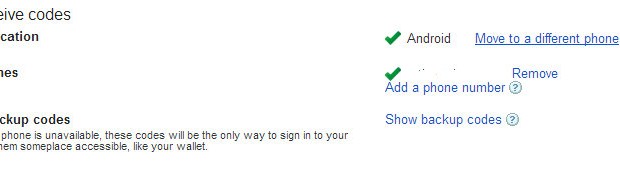
Getting a new HTC One left me wondering how will I move Google Authenticator from my HTC Legend, I didn’t want to do everything all over. To my amazement I found Google has come up with a solution for a situation like this, it’s the “Move to a different phone” option in 2-step authentication setting page. It was a breeze switching to a new phone. Install Google Authenticator on your new phone and follow the “Move to a different phone” link.

1-001