Author Archives: Pradeep

Self-hosting free password manager : Vaultwarden

Bitwarden is an open-source password manager that helps individuals and organizations securely store, manage, and share sensitive information such as passwords, passkeys, and credit card details—all within an encrypted vault. While Bitwarden offers a robust free tier, premium features like TOTP (time-based one-time password) generation for two-factor authentication (2FA) are reserved for paid plans.

Bitwarden also offers a self-hosting option that includes its core password management features for free. However, this option comes with some notable limitations:

  • Certain advanced features still require a paid subscription.
  • Hardware requirements are relatively high, typically needing a x64 CPU and at least 2GB of RAM.
  • This can be a barrier for enthusiasts or hobbyists who want to host it on low-power devices or can’t run servers 24/7.

Enter Vaultwarden


Vaultwarden is a lightweight, community-maintained, and fully self-hosted alternative that is API-compatible with official Bitwarden clients. Originally known as “bitwarden_rs”, it was designed to be much more resource-efficient while supporting nearly all Bitwarden features—including many of the paid ones—for free.

Key advantages of Vaultwarden:

  • Low hardware requirements: Runs smoothly on devices like Raspberry Pi, Synology DiskStation, or other minimal setups.
  • Easy to deploy using Docker.
  • Fast, reliable, and regularly updated by the community.

Deploying Vaultwarden with Docker on Raspberry Pi


In this guide, I’ll show you how to install and configure Vaultwarden on a Raspberry Pi using Docker. We’ll also cover how to make it accessible over the internet using a Cloudflare Tunnel, so you can securely access your password vault from anywhere. I am going to assume that docker is already installed, and you have basic idea of docker commands.

First lets create docker network, and needed directories.


sudo docker network create --subnet=10.5.0.0/16 net_localapps
sudo docker network list
sudo mkdir /var/log/vaultwarden
sudo mkdir /mnt/docker/vaultwarden/
sudo mkdir -p /mnt/docker/vaultwarden/

Next, let add logrotate config, this is completely optional. Add the following to /etc/logrotate.d/vaultwarden

/var/log/vaultwarden/*.log {
  # Run as root (default), since logs are owned by root
  daily
  size 5M
  compress
  rotate 4
  copytruncate
  missingok
  notifempty
  dateext
  dateformat -%Y-%m-%d-%s
}

Next we need to generate a hash of your admin password. Vaultwarden’s admin panel token should be secure and hashed, preventing someone from easily discovering or misusing it—even if they access your environment variables or config. Run the following command, which will give you an hash, we will need that in the next step.

sudo docker run --rm vaultwarden/server:latest hash

It will prompt you to enter a password (your desired admin token):

Admin token (hidden input):
Re-enter admin token:
Hashed token:
$argon2id$v=19$m=19456,t=2,p=1$….

Now, lets use this to launch our vaultwarden docker container.

sudo docker run -d --name bitwarden --restart=always -v /mnt/docker/vaultwarden/:/data/ -v /var/log/vaultwarden:/data/logs/ -e TZ=Asia/Kolkata -e LOG_LEVEL=error -e LOG_FILE=/data/logs/access.log -e EXTENDED_LOGGING=true -e ADMIN_TOKEN='<ADD_YOUR_ADMIN_TOKEN>'  --net net_localapps --ip 10.5.0.2 -p 127.0.0.1:8082:80 -p 127.0.0.1:3012:3012 vaultwarden/server:latest

I have chosen a fixed IP, you may change it. Next, lets configure Cloudflare tunnel to provide access from the internet.

Install cloudflared

sudo apt install wget
wget https://github.com/cloudflare/cloudflared/releases/latest/download/cloudflared-linux-arm64.deb
sudo dpkg -i cloudflared-linux-arm64.deb

Authenticate Cloudflared

cloudflared tunnel login

Create the Tunnel

cloudflared tunnel create vaultwarden-tunnel

This will generate a tunnel ID (needed in the next) and credentials file (saved locally).

Create Tunnel Configuration

mkdir -p ~/.cloudflared
nano ~/.cloudflared/config.yml
Config
tunnel: vaultwarden-tunnel
credentials-file: /home/pi/.cloudflared/<YOUR_TUNNEL_ID>.json

ingress:
  - hostname: vault.yourdomain.com
    service: http://10.5.0.2:80
  - service: http_status:404

Cloudflare will handle SSL certificates for your domain.

Happy secure password management!

Installing Log2RAM utility on your Raspberry Pi

log2ram is a utility specifically designed for Linux-based systems, particularly single-board computers like the Raspberry Pi, to mitigate wear on their SD cards. It achieves this by strategically minimizing write operations to the SD card, a component known for its susceptibility to degradation from frequent write cycles. The core functionality involves storing system logs in RAM (Random Access Memory), a much faster and less wear-prone storage medium. This approach not only significantly extends the lifespan of the SD card, as detailed in https://linuxfun.org/en/2021/01/01/what-log2ram-does-en/, but also enhances overall system responsiveness due to the inherently faster read and write speeds of RAM compared to SD cards.

Although, log2ram is primarily recommended for Raspberry Pi and systems which run off an SD card, but it can be installed on any Linux system.

log2ram operates by keeping system logs in a RAM-based filesystem (tmpfs). To persist these logs, it periodically flushes or syncs the contents of this RAM filesystem to the actual storage media (typically an SD card) at a defined interval. This synchronization ensures that logs are not completely lost upon a system crash or power failure. The frequency of this flush operation is configurable, allowing users to balance the need for up-to-date persistent logs with the desire to minimize write operations to the SD card. Additionally, log2ram might also trigger a sync under specific conditions, such as before a system shutdown, to ensure data integrity.

Overall, log2ram is a simple yet effective tool to optimize Raspberry Pi and other Linux systems by protecting SD cards from premature failure due to excessive logging writes, while also enhancing system speed.

Installation is pretty straight forward on Debian based system, where you can install from the repository.

echo "deb [signed-by=/usr/share/keyrings/azlux-archive-keyring.gpg] http://packages.azlux.fr/debian/ bookworm main" | sudo tee /etc/apt/sources.list.d/azlux.list
sudo wget -O /usr/share/keyrings/azlux-archive-keyring.gpg  https://azlux.fr/repo.gpg
sudo apt update
sudo apt install log2ram

For manual install & more information refer to https://github.com/azlux/log2ram?tab=readme-ov-file

Post installtion you may tweak the log2ram config file, to adjust the amount of RAM allocated for log storage to suit your system’s resources and logging needs. The configuration also allows you to enable or disable log compression. If compression is enabled, you can typically select from various algorithms that offer different trade-offs between compression ratio and processing overhead. For instance, lz4 is the default and generally recommended for its excellent balance of speed and compression, while zstd can be chosen for achieving maximum compression at the potential cost of slightly higher CPU usage. Here is my log2ram.conf

SIZE=512M
PATH_DISK="/var/log"
JOURNALD_AWARE=true
ZL2R=false
COMP_ALG=lz4
LOG_DISK_SIZE=512M

To further optimize RAM usage, you can configure log2ram to manage only active log files. By default, log2ram mirrors the entire /var/log directory in RAM, which includes both actively written logs and older, rotated log files. Retaining these rotated logs in RAM can consume considerable memory, especially if you have numerous or large historical log files.

However, you can instruct log2ram to exclude these rotated logs by utilizing the olddir directive within the system’s log rotation configuration (managed by logrotate). The olddir directive allows you to specify an alternative directory or even a different partition on your SD card where rotated log files will be moved instead of remaining in /var/log.

By manually editing each relevant logrotate configuration file (typically found in /etc/logrotate.d/) to include an olddir directive pointing to a separate location (for example, /mnt/log/rotated_logs), you ensure that once logs are rotated, they are moved out of /var/log. Consequently, log2ram will only load the active logs present in /var/log into the RAM disk, significantly reducing RAM consumption.

We hope this advanced tip enhances your log2ram experience and contributes even further to the longevity of your SD card. Happy optimizing!

Update Google AMP Cache with Perl

While implementing Google AMP (Accelerated Mobile Pages) for your website, it might occur to you that you might need to update your page, and how would the AMP cache be invalidated/flushed/updated. Google AMP project has an easy solution for this, it’s an API call to the invalidate any URL.

We can use the update-cache request to update and remove content from the Google AMP Cache. Google AMP cache updates content based on the max-age present in the header when the page was last fetched. The update-cache endpoint requires the user to make a signed request using a self generated RSA private key, the public key should be available at a standard location on your website.

I faced the same dilemma, I had read the docs, but couldn’t find any ready-made solution in Perl, so I had to write mine, which I will be sharing with you. Here’s how to get going.

First we need to generate the the private & public keys:

$ openssl genrsa 2048 > private-key.pem
$ openssl rsa -in private-key.pem -pubout >public-key.pem
$ cp public-key.pem <document-root-of-website>/.well-known/amphtml/apikey.pub

replace <document-root-of-website> with your website’s document root.

Next, here’s the Perl code to which accepts an URL which needs to be invalidated. I have commented the code so its easier to understand.

#!/usr/bin/perl

use utf8;
use MIME::Base64 qw[encode_base64url];
use Mojo::UserAgent;
use Crypt::OpenSSL::RSA;
use Mojo::URL;
use Mojo::File;

## paths to keys
my $path_to_priv_key = 'private-key.pem';

my $ua = Mojo::UserAgent->new;

## get URL from command line argument
my $url = shift;

unless ( defined($url) && $url ) {
die('URL required');
}

my $url_obj = Mojo::URL->new($url);

## fetch the JSON containing the caches those need to be invalidated.
my $caches = $ua->get('https://cdn.ampproject.org/caches.json')->res->json;

unless ( defined($caches) && ref($caches) ) {
die('Could not get caches');
}

## load the private key
my $priv_key = Mojo::File->new($path_to_priv_key)->slurp;
## create openssl private key instance
my $rsa_priv_key = Crypt::OpenSSL::RSA->new_private_key($priv_key);

## select the hashing algo to use, which as specified by Google AMP is SHA-256
$rsa_priv_key->use_sha256_hash();

## loop through the caches to be invalidated
foreach my $cache ( @{ $caches->{caches} } ) {
## build the URL to invalidate
my $url_to_sign = sprintf( '/update-cache/c/s/%s%s?amp_action=flush&amp_ts=%s', $url_obj->host, $url_obj->path, time() );

my $encrypted_sig = $rsa_priv_key->sign($url_to_sign);

## get AMP-style hostname, read more at https://developers.google.com/amp/cache/overview#amp-cache-url-format
my $host_amp_style = $url_obj->host;

$host_amp_style =~ s/([.-])/($1 eq '.')?'-':'--'/eg;

## URL-safe base64 encode the signature
my $sig = encode_base64url($encrypted_sig);

## build API URL to call
my $api_url = Mojo::URL->new( sprintf( 'https://%s.%s%s&amp_url_signature=%s', $host_amp_style, $cache->{updateCacheApiDomainSuffix}, $url_to_sign, $sig ) );

## make request
my $tx = $ua->get($api_url);

## print reponse, you may change this according to your needs
print $tx->res->body;
}

Further reading:

Google Authenticator: Moving To A New Phone

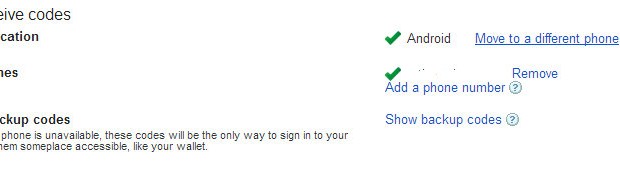
Getting a new HTC One left me wondering how will I move Google Authenticator from my HTC Legend, I didn’t want to do everything all over. To my amazement I found Google has come up with a solution for a situation like this, it’s the “Move to a different phone” option in 2-step authentication setting page. It was a breeze switching to a new phone. Install Google Authenticator on your new phone and follow the “Move to a different phone” link.

1-001

Monitor Files & Directory For Modifications With PHP

One can monitor for changes to files & directories, including events like open, close, new file, delete, rename & all other file/directory operations.

The following code snippet should be self-explanatory:

<?
$data_file = '/var/data/my_data_file.txt';

$inotify_fd = inotify_init();

$watch_descriptor = inotify_add_watch($inotify_fd, $data_file, IN_OPEN);

while (1)
{
$events = inotify_read($inotify_fd);
$filepath = $events['name'];

print "File opened";
}

inotify_rm_watch($inotify_fd, $watch_descriptor);

fclose($inotify_fd);
?>

List Modified Filenames In Git

I was working on a few enhancement features of an existing project, after a few weeks work I was required to make some completed features live, so I was wondering what all files have been modified. So the Git versioning came to help, and by specifying two commit SHA1s I was able to retrive the list of files modified between the commits. Here’s how to do it,

$ git diff --name-only afd98 a3d55
program.pl
list.pl
Docs.pm

Monitor Directory For New Files With WSH

Sajal wanted to monitor a directory, detect new file(s) and open them in their associated applications, I remember monitoring directory for changes in Linux in a Perl script. Doing something similar on Windows it seemed tough, but a after a little pondering I remembered about Windows Script Host (WSH), and after a bit of googling, coding, trial and errors, I came up with a script which does all that is required, it’s written in VBScript.

strDrive = "D:"
strFolder = "\\dropbox\\downloads\\"
strComputer = "."
intInterval = "5"

' Connect WMI service
Set objWMIService = GetObject("winmgmts:" _
& "{impersonationLevel=impersonate}!\\" & _
strComputer & "\root\cimv2")

' build query
strQuery =  "Select * From __InstanceCreationEvent" _
& " Within " & intInterval _
& " Where Targetinstance Isa 'CIM_DataFile'" _
& " And TargetInstance.Drive='" & strDrive & "'"_
& " And TargetInstance.Path='" & strFolder & "'"

' Execute notification query
Set colMonitoredEvents = objWMIService.ExecNotificationQuery(strQuery)

' get a shell application object
Set WshShell = WScript.CreateObject("Shell.Application")

Do
Set objLatestEvent = colMonitoredEvents.NextEvent
' strip out the real path
Response = Split(objLatestEvent.TargetInstance.PartComponent, "=")
' remove slash & quotes
FileName = Replace(Response(1), """", "")
FileName = Replace(FileName, "\\", "\")
' open the file in it's associated program
WshShell.ShellExecute FileName, "", "", "open", 1
Wscript.Echo FileName
Loop

Force Download Specific Files with Apache & Htaccess

At time we want visitors to download instead of viewing the file instead of viewing inside their browser. As a visitor I have faced problems with PDF files at many sites where I wanted to download the PDF file and view it separately because viewing the PDF inside the browser slows down the browser and sometimes causes the browser to crash.

So, If you want to force people to download a file or all files in a specific directory and so on, if is very easy to do so with the help an Apache directive which sets the response header ‘Content-Disposition’ to ‘attachment’, see the examples below:

<Files *.pdf>
Header set Content-Disposition attachment
</Files>

<Directory /var/www/html/images>
Header set Content-Disposition attachment
</Directory>

Your own, “no software”, data shredder

Junk file creation

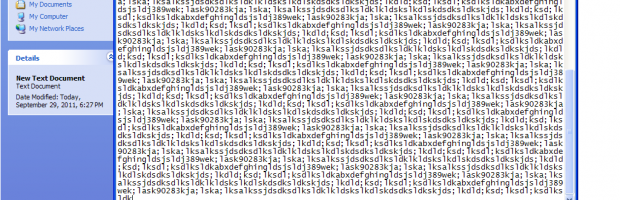
By data shredder I mean deleting data on a re-writable storage medium beyond recovery by normal methods. You might have heard of recovery of deleted files using special software, similarly, there are software available to delete data/files rendering them unrecoverable.

Read more »

Browsing privacy at public places & work

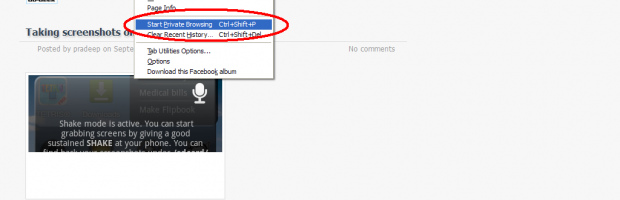
Many times we run into situations where we are required to use a public or a friend’s computer for work or personal work, like paying bills, buying stuff online etc, with this comes a privacy problem of privacy where you might accidentally leaving browsing/download history, login cookies (i.e. remember me/stay signed in etc) or chances of browsers saving form data & passwords. Private browsing or Incognito mode as some browsers feature it is the answer to the problem.

Read more »